Record screen, window or area
Capture a whole display, a single app window, or any area you draw. Recording starts from the menu bar in two clicks.
Free for macOS
Record your screen with your Mac’s sound, your voice and your webcam in one click. Skrimo then zooms, smooths and frames it into a polished demo. No drivers. No watermark.
Internal audio, built in
macOS can’t record the sound your Mac plays: the screenshot toolbar and QuickTime only hear your microphone. Skrimo captures both. Switch on System audio and Microphone, press Start, and your Mac’s sound and your voice are recorded together, on separate tracks you can balance before you export.
How to record internal audio on Mac · How to record screen on Mac
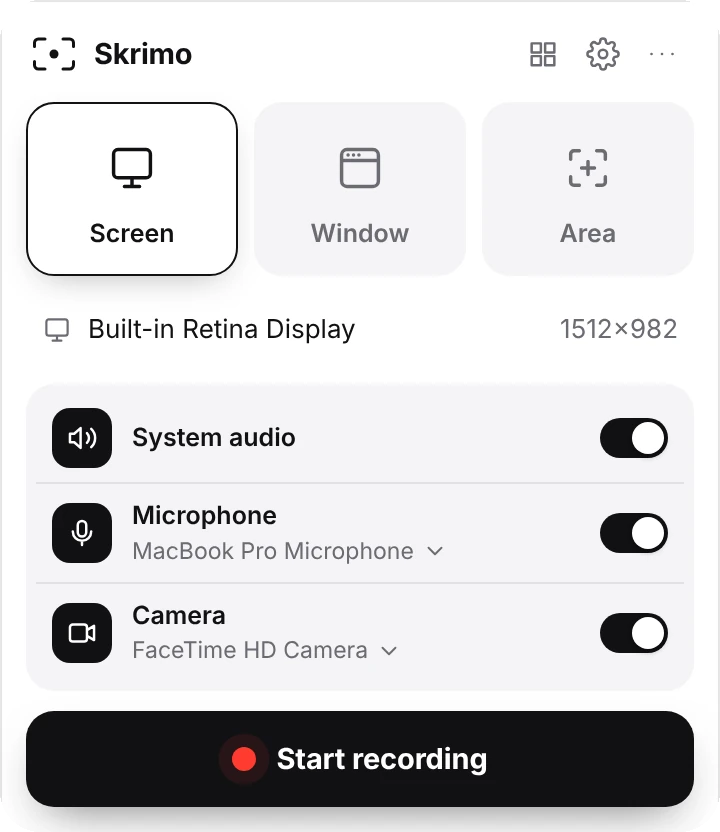
Click the menu bar icon, pick a screen, window or area, and switch on audio and camera.
Skrimo zooms in where you clicked, smooths the cursor and frames the video on a background.
Trim, cut and tweak on a simple timeline, then export MP4 up to 4K or a GIF.
A simple editor
Every recording opens in an editor that already did the work: zooms on your clicks, a smooth cursor, padding, rounded corners and a soft shadow. Change the background, move the webcam, adjust a zoom, cut a mistake. Undo anything.
Capture a whole display, a single app window, or any area you draw. Recording starts from the menu bar in two clicks.
Record your Mac’s internal audio and your voice at the same time, on separate tracks you can balance later. No virtual audio driver needed.
Add your face in a round or rounded-square bubble. Drag it anywhere while you record, then move or resize it in the editor.
Skrimo zooms in where you click and type, and glides along with your cursor. Every zoom is a block on the timeline you can edit.
Shaky mouse movements become smooth glides. Make the cursor bigger, add click highlights, and hide it when it sits still.
Frame your recording on a clean background with rounded corners and a soft shadow, so it looks designed, not captured.
Trim the start and end, cut out mistakes, and adjust zooms. Undo everything. No video-editing experience needed.
One-click presets for YouTube, X, LinkedIn and vertical video. 1080p or 4K MP4, or a lightweight GIF for docs and READMEs.
| Skrimo | Screen Studio | Loom | CleanShot X | Camtasia | |
|---|---|---|---|---|---|
| Price | Free | Subscription | Free plan, paid seats | One-time purchase | From $179.88/yr |
| Internal audio | Yes, built in | Yes | Yes, desktop app | Yes | Installed component |
| Automatic zoom | Yes | Yes | No | No | No |
| Webcam bubble | Yes | Yes | Yes | Yes | Yes |
| Free-plan limits | None | No free plan | 25 videos, 5 min | No free plan | Watermark on Starter |
| Best for | Polished demos | Polished demos | Async messages | Screenshots + clips | Courses |
Checked November 2026. Read the full comparisons: Screen Studio alternative · Loom alternative · Camtasia alternatives · Best screen recording software for Mac
It depends on what you make. For polished demos, tutorials and product videos with internal audio, Skrimo is a free choice. CleanShot X suits screenshot-heavy work, Loom async messages, Camtasia heavy editing and OBS streaming. See our full comparison.
In Skrimo, click the menu bar icon, choose Screen, Window or Area, switch on System audio and Microphone, and press Start recording. Your Mac’s sound and your voice are saved on separate tracks.
Yes. Skrimo captures internal (system) audio directly on macOS 13 Ventura or later, so there’s no virtual audio driver or Audio MIDI Setup involved.
Yes. Skrimo is free to download and use, with no watermark, no time limit, no video limit and no account.
Skrimo runs on macOS 13 Ventura or later, on Apple silicon and Intel Macs. Recordings are saved on your Mac in Movies → Skrimo; nothing is uploaded.
MP4 at 1080p or 4K, or GIF. Presets size the video for YouTube, X, LinkedIn and vertical (9:16) video.
Free, private, and ready in a minute.